Changing Computer Login Password
Changing Your Password
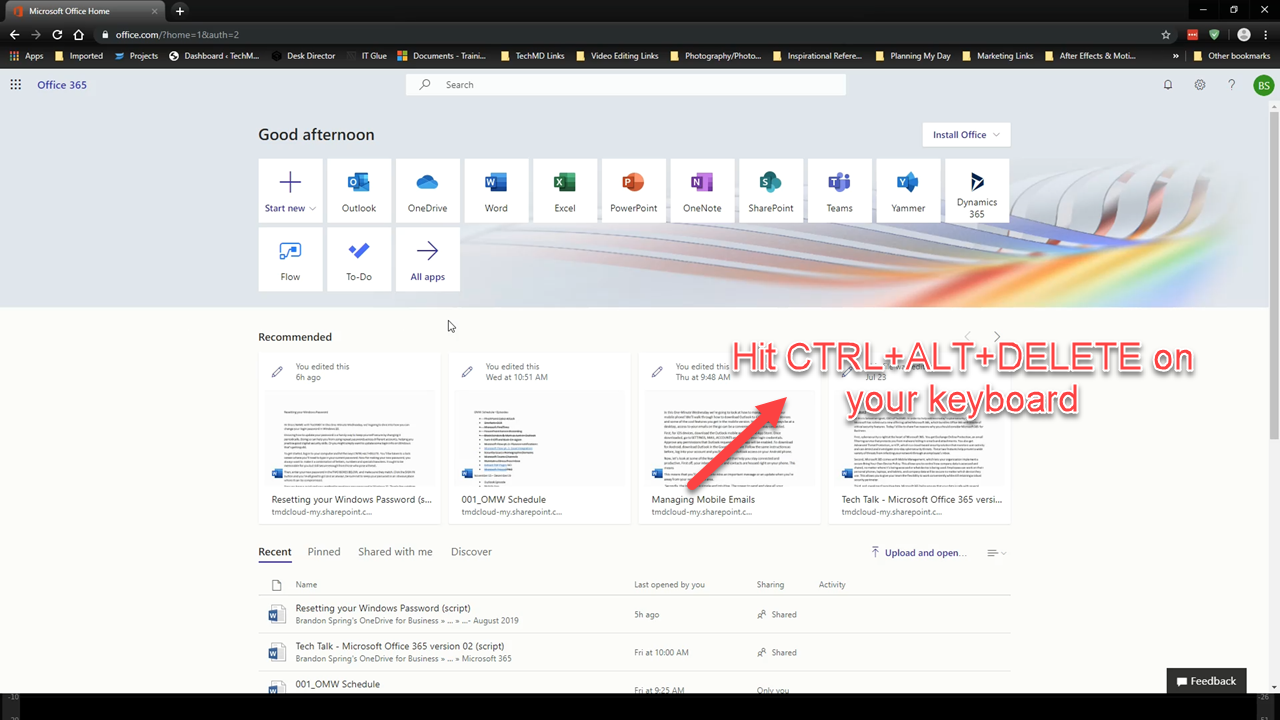
First, ensure you’re already logged in to your computer. Then, hit the key combination CTRL+ALT+DELETE. A lock screen will then appear; choose the “Change A Password” option.
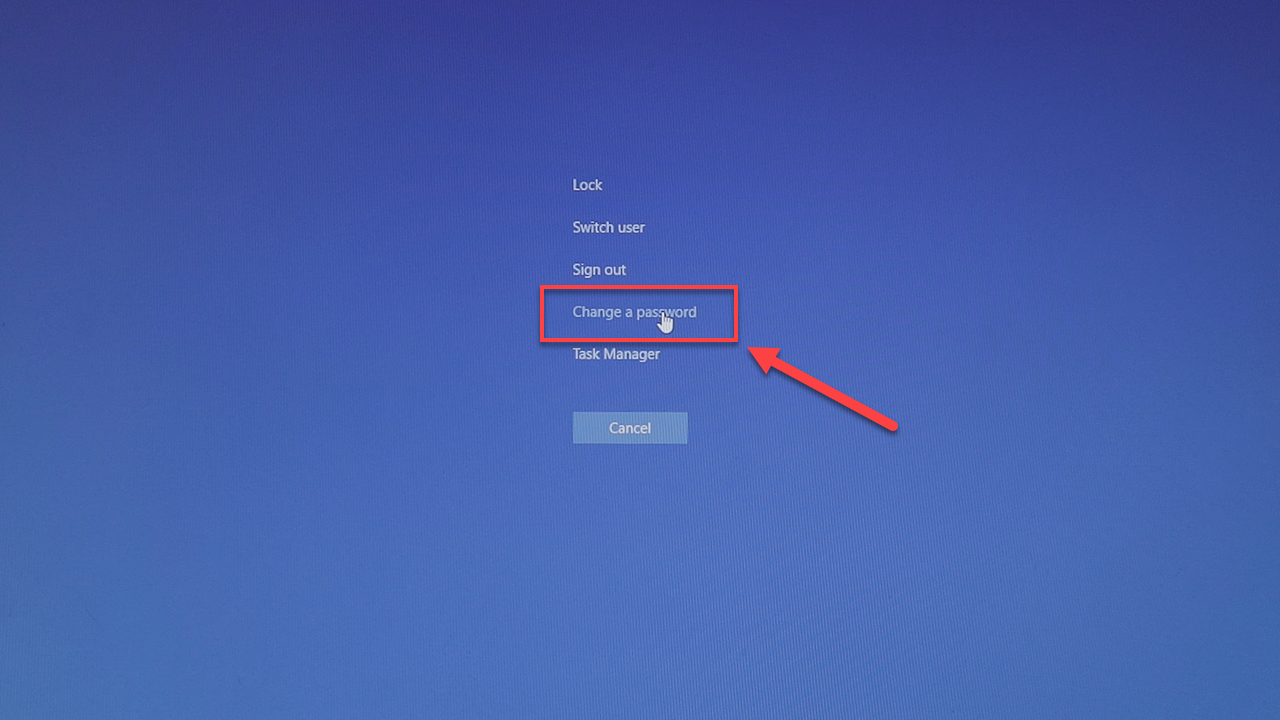
Once you choose this option, you’ll need to enter your current password. Then, enter in your newly created password in both boxes. Make sure it’s a combination of letters, numbers and characters. A good rule of thumb with all passwords is to make them complex enough to stay secure from threats, but also memorable enough for you to log in with ease.
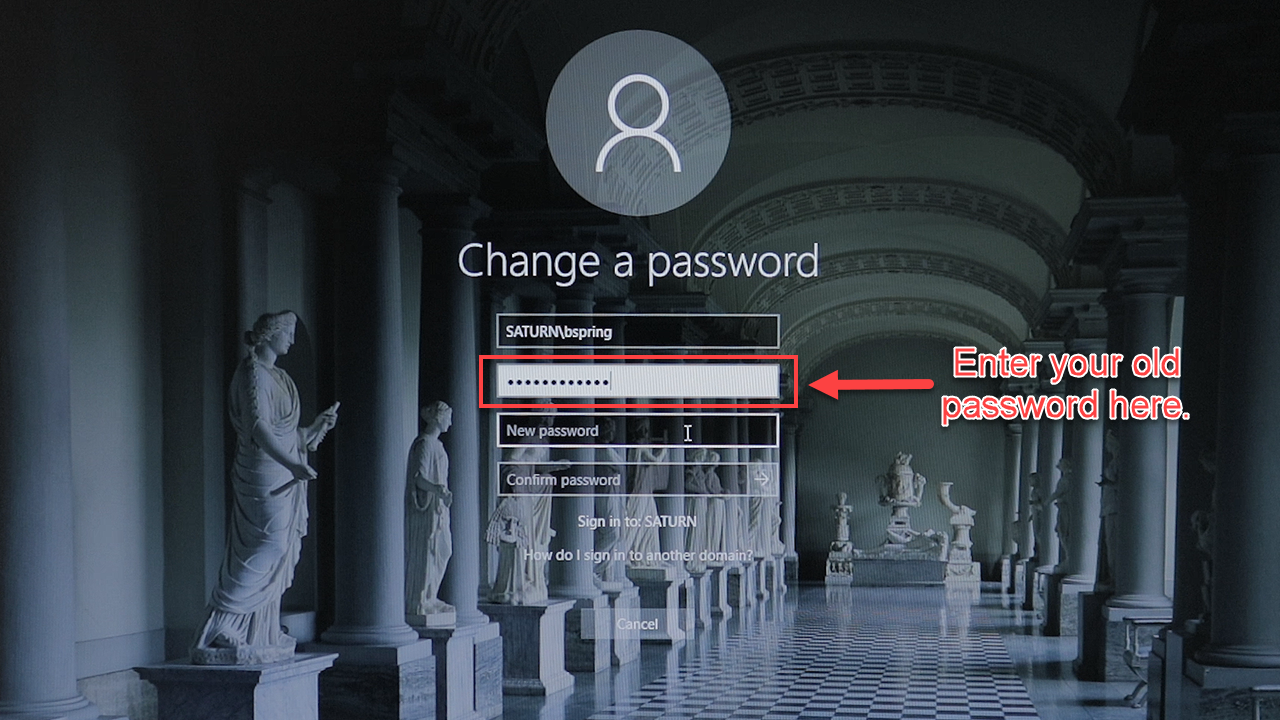
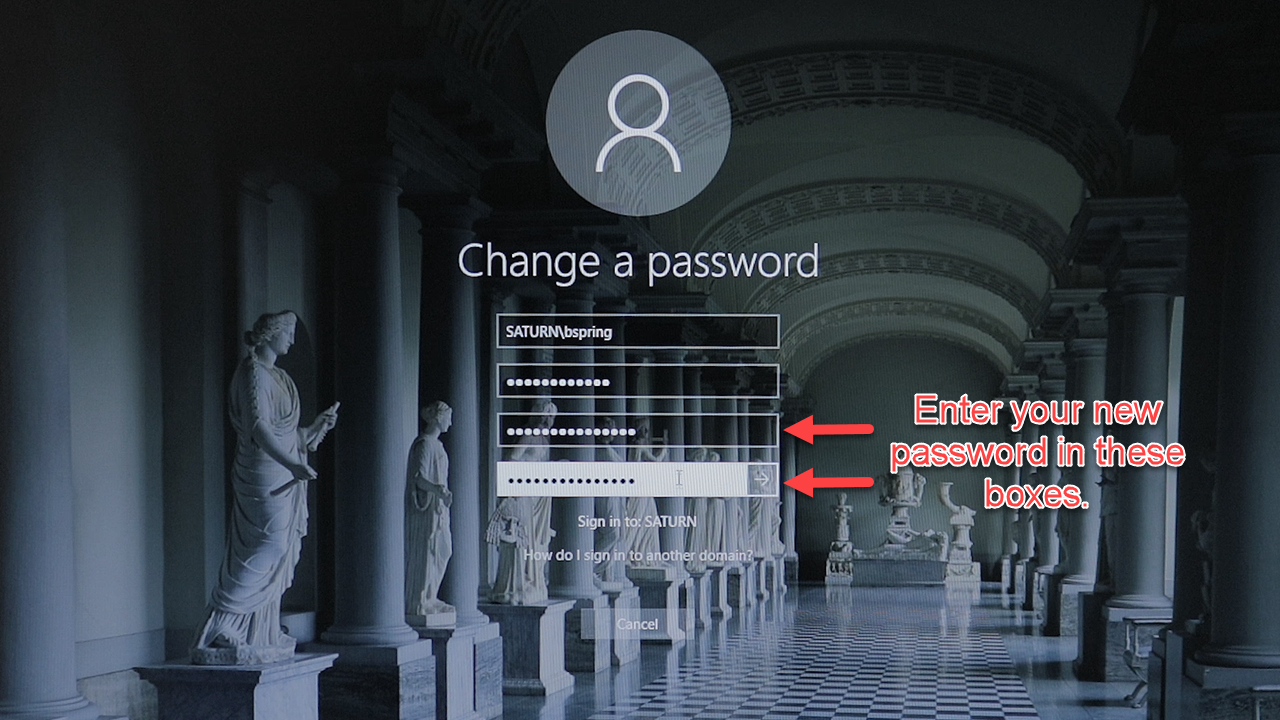
Now, sign in and you’re good to go. You officially have a new login password that you’ve customized to your liking.
Related Articles
Changing Your Email Password
Please find attached step by step directions for changing the password on your email. To access your email, please visit https://mail5.enguard.com/Standard Android Florida Eye Email Setup
Email Setup on other Android Devices This tutorial will show you how to setup your Enguard Email Account on other Android Devices. If you have MobileSync enabled for your account, please use our MobileSync Setup on other Android Devices tutorial. ...Florida Eye Specialists Email For Outlook 2016 Set Up
Outlook 2016 - IMAP Setup This tutorial will show you how to setup your EnGuard IMAP Email Account in Outlook 2016. Screenshots are for reference only. Please read the instructions at each step. Step 1: If you are adding an email account to ...Add Signature Image To Webmail
Adding a Logo to your Email Signature This tutorial will show you how to add a Logo to your Email Signature. Step 1: Send your logo to our support department via email. Supported file types: .jpg / .jpeg, .gif, .png Step 2: We will send you custom ...